Last week we launched bursty concurrency, which lets Pro and above accounts run up to 3x their concurrency limit for one hour a month. Getting through a spike without a backlog is great, but the more useful part of a burst is that it measures how far past your limit your workload actually went.
This post covers how to read that measurement, along with the other signals that tell you whether you need more concurrency now, or will soon. It also covers the cases where adding concurrency won't fix the problem.
What are you actually running out of?
In Inngest, concurrency is the number of steps executing code at the same moment. It is not the number of runs in progress. A run that is sleeping with step.sleep(), waiting on step.waitForEvent(), or waiting on a child function with step.invoke() holds no slot. You can have thousands of runs in flight and very few slots in use.
Your account limit is shared across every function and environment. When every slot is busy, new steps wait in the queue until one frees up. So "running out" of concurrency means more steps want to run at the same moment than your account allows.
How much concurrency does a workload need?
You can estimate it before you open a single chart:
Slots needed ≈ steps started per second × average seconds per step
This is Little's Law, and it explains most concurrency surprises. Two steps a second that each take three seconds keep six slots busy. If your LLM provider slows down and those steps take nine seconds instead, the same traffic now needs eighteen slots.
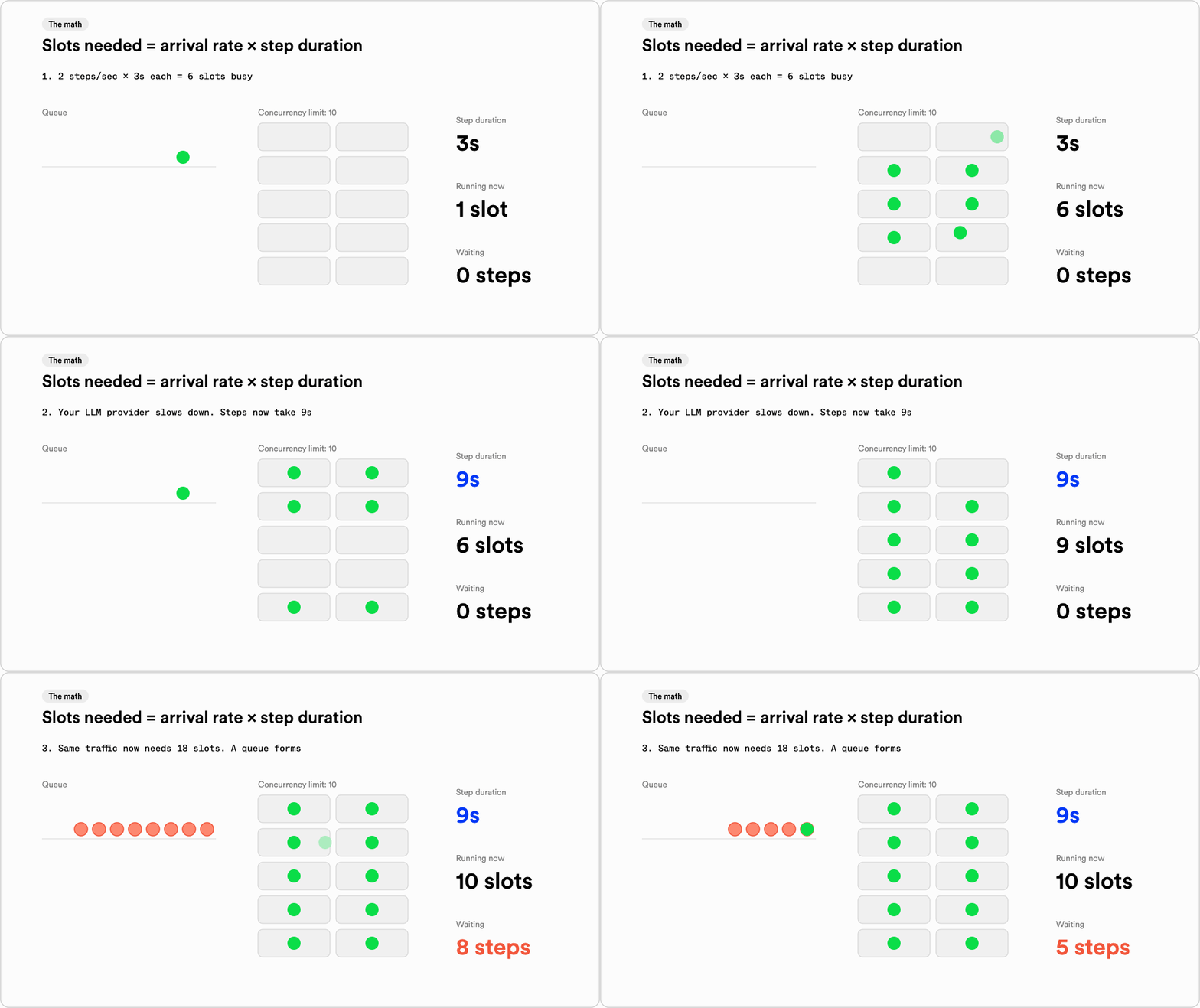
Steps arriving at 2 per second fill 6 of 10 concurrency slots at 3 seconds each. When step duration rises to 9 seconds, all 10 slots fill and a queue forms.
Two things follow from this:
- Concurrency follows latency as well as traffic. If a downstream API gets twice as slow, you need twice the slots, with no new users and no new events.
- Long steps account for most of your concurrency. A 30-second model call started five times a second needs 150 slots. A 200ms database write at the same rate needs one.
Do this math for your heaviest function first. It tells you roughly what a chart should show before you go looking for one.
Signal 1: Your backlog has a floor
The Backlog chart on the Metrics page shows how many runs are waiting in each time bucket. The docs suggest it for exactly this: checking your account's concurrency capacity and spotting spikes.
Every queue backs up sometimes. What matters is whether it drains.
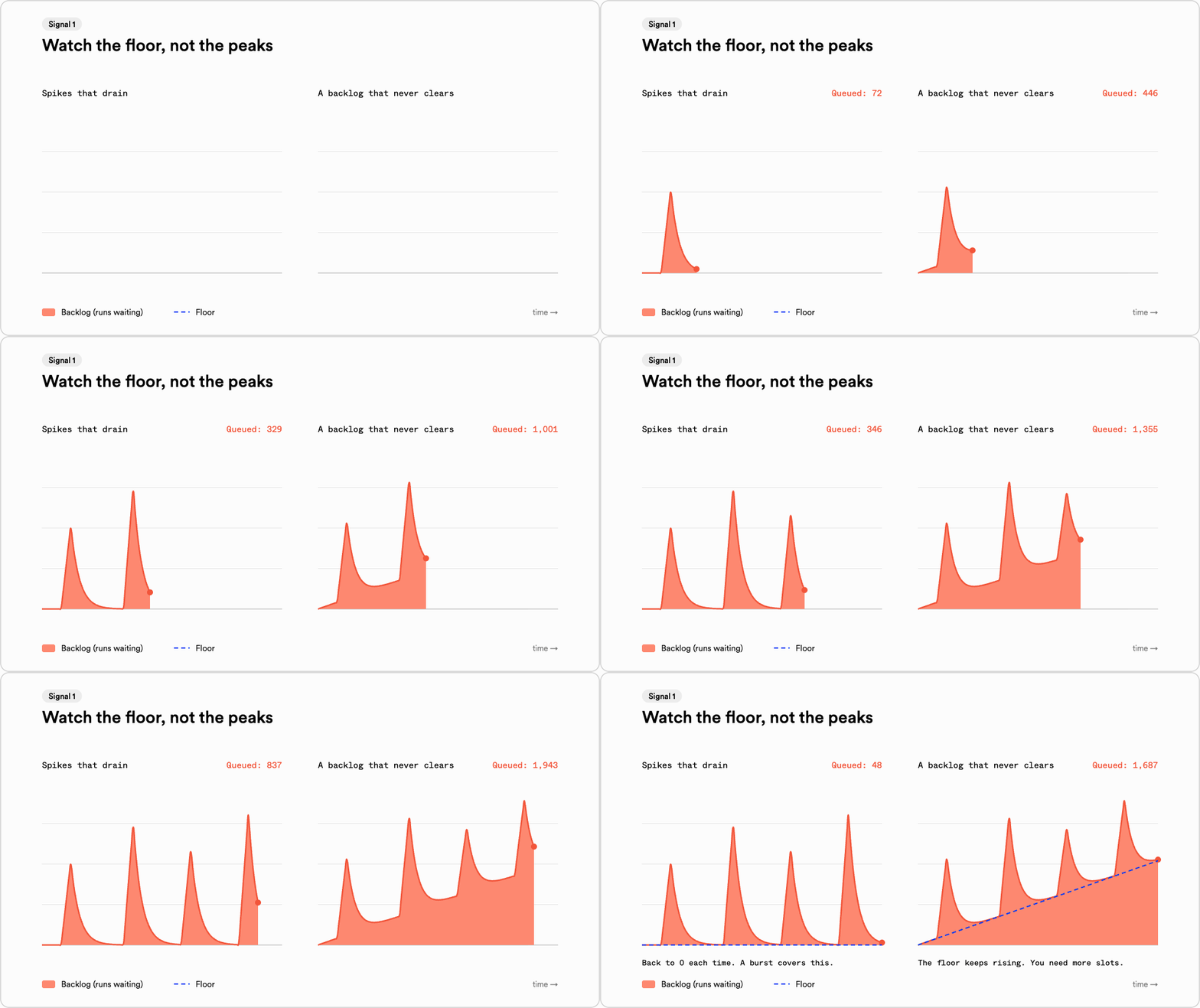
Two backlog charts with the same spikes. On the left the backlog returns to zero after each spike. On the right it never fully clears and its floor rises over time.
- The backlog spikes and then returns to zero. Your limit covers your average load, and the spikes are what bursty concurrency is for.
- The backlog never gets back to zero, and its floor keeps rising. On average, work is arriving faster than your limit can process it. A burst can hide this for a while, but it can't fix it.
Check the Total steps throughput chart for the same period. If step throughput flattens into a plateau while the backlog grows, you're pinned at your ceiling. The docs call out low step throughput as a sign that steps are being held back by a concurrency limit.
One caveat: metrics are grouped into time buckets (15 minutes on Pro, 1 minute on Business and above), so a three-minute spike will look smaller on the chart than it really was.
Signal 2: You're spending your burst budget
On Pro and above, a burst raises your ceiling to 3x your limit, and each minute spent above your limit uses one minute of a 60-minute monthly budget. You can see usage on the billing usage page, and admins get an email at 25%, 50%, 75%, and 100% of the budget.
Read the budget as a measurement as well as a safety net:
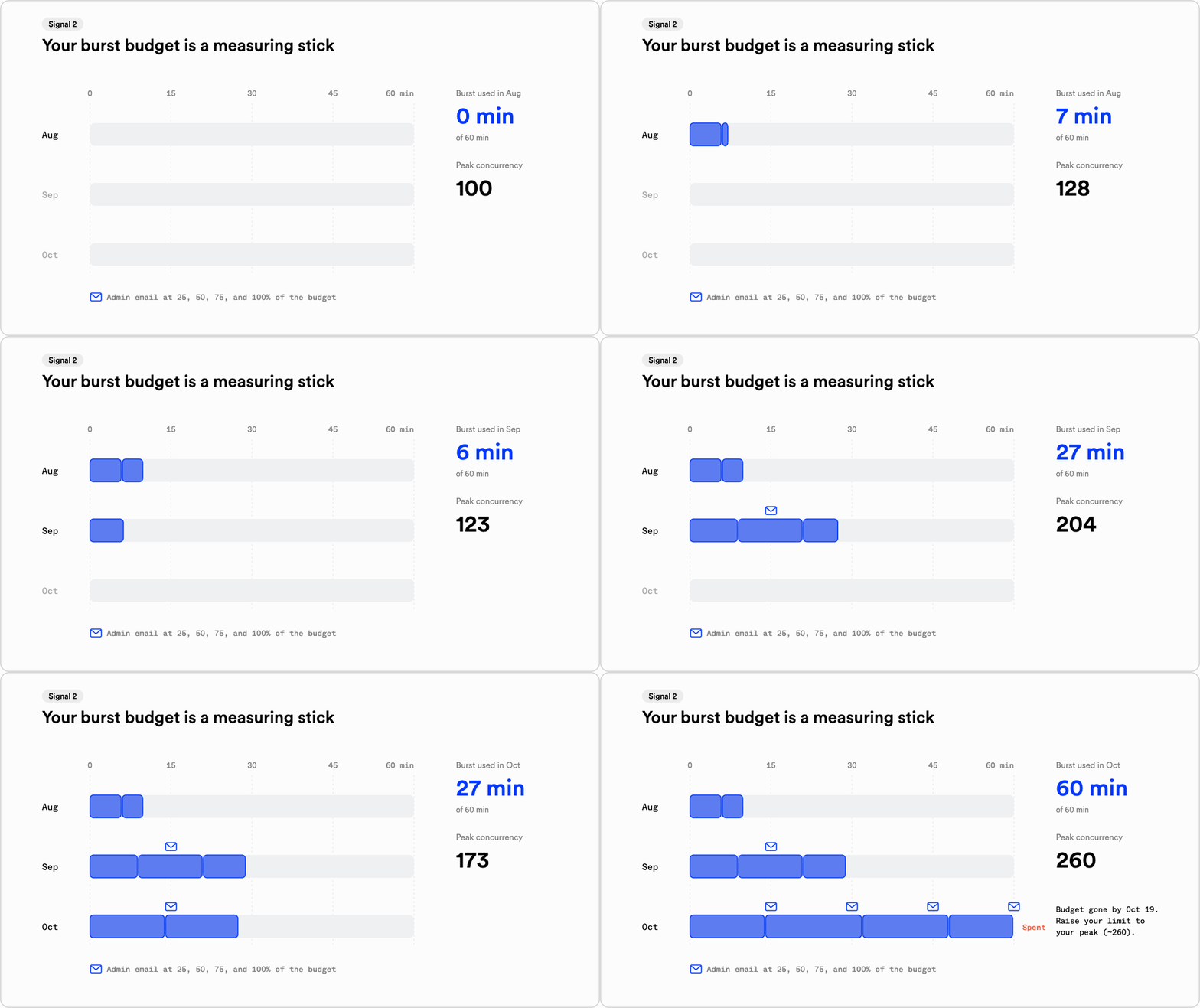
Three months of burst usage. August uses 10 of 60 minutes, September uses 29, and October spends all 60 by the 19th with a peak of 260 concurrent steps.
- An occasional burst, a few minutes at a time. This is a one-off. As the docs put it, "occasional bursting means that bursty concurrency is doing its job."
- Emails most months, and usage climbing. A pattern is forming. Note the peak you're bursting to each time.
- The budget runs out before the month does. Your workload has outgrown your limit. Raise your limit to the peak you burst to, not to your old limit plus a little.
Bursts only apply to the account limit. Function-level concurrency, throttling, and priority you've set still apply during a burst, so a function with its own limit won't burst past it. If that function is the one backing up, look at its configuration before your plan (more on that below).
Signal 3: Your baseline is catching up to your limit
Backlogs and bursts tell you that you need concurrency now. To see that you'll need it soon, track your typical peak rather than the spikes.
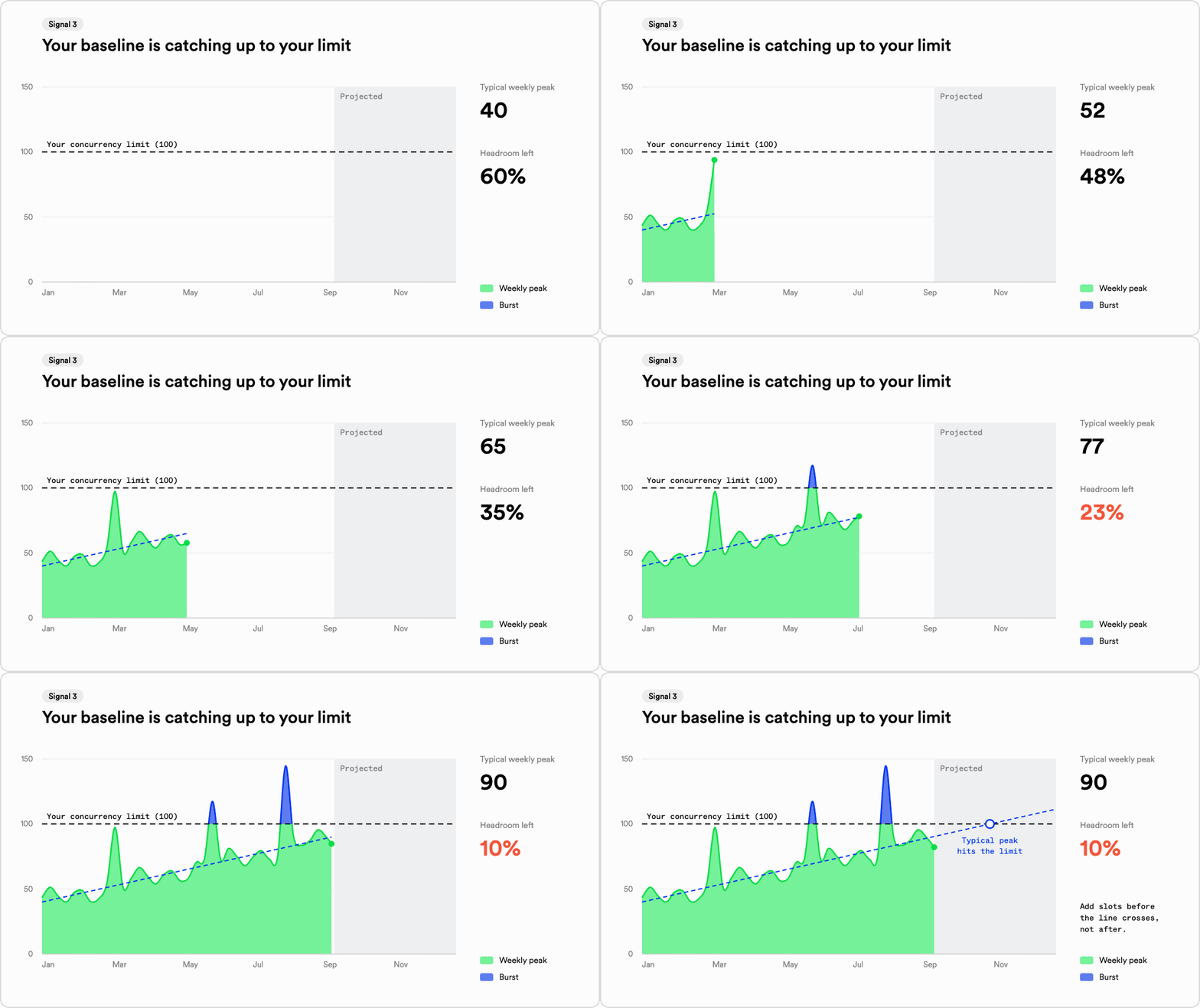
Weekly peak concurrency rising from about 40 to 90 over eight months against a limit of 100. A dashed trend line crosses the limit around October.
Take the busiest normal moment of each week, leave out the one-off spikes, and watch the trend. When that line gets within about 25% of your limit, ordinary variance will start pushing you over it, and Signals 1 and 2 will start showing up. That threshold is our rule of thumb, not a hard rule, so adjust it for how spiky your traffic is.
The metrics dashboard covers recent history. For a longer trend, export your metrics to Datadog or a Prometheus-compatible tool.
Charts show growth after it happens. These changes usually raise your baseline before any chart does:
- Launching a feature that fans out. One event per user, per row, or per document multiplies your step rate.
- Onboarding a big customer. Day-one imports and backfills are fan-out at their largest.
- Shipping agents. One run that fans out into parallel tool calls and sub-agents uses several slots at once.
- Changing models or providers. A slower model means longer steps, and by the math above, more slots.
- Piling scheduled jobs onto the same minute. Nightly syncs, reports, and billing jobs that all start at midnight UTC compete with each other. Staggering them can save a lot of capacity.
When more concurrency isn't the answer
Before adding slots, make sure the backlog isn't coming from your own configuration:
-
A function-level limit is the bottleneck. If one function backs up while your account has headroom, the function's own
concurrency.limitis the ceiling. Raising your account limit won't change it. -
One customer is crowding out everyone else. Give each customer their own limit with a concurrency key, so a large import from one account doesn't stall the rest:
concurrency: {limit: 10,key: "event.data.accountId",} -
The downstream service can't take more. If an API is rate-limiting you, more slots just means more 429s. Use throttling to control how fast work starts.
-
Steps hold a slot while they wait. A step that polls in a loop or sleeps inside its own code holds its slot the whole time. Move the wait into
step.sleep()orstep.waitForEvent()and the slot frees up. -
Some work matters more than other work. If what you need is for key customers to stay fast, priority may do the job without adding capacity.
How much should you add?
- Size to your observed peak, not your average. The docs recommend upgrading to the peak you burst to. If you haven't burst, use the Little's Law estimate for your busiest hour.
- Add it in the app. Pro includes 100 concurrent steps, and you can add more in blocks of 25 on the billing page. If your peak is above 1,000, the Pro maximum, talk to us about Enterprise.
- Check again next month. If you stop bursting and your backlog drains back to zero, you sized it right.
The short version
- Backlog drains to zero? You're fine. Bursts cover the spikes.
- Backlog has a rising floor? You need more slots, or less time per slot.
- Burst budget spent before month end? Raise your limit to the peak you burst to.
- Typical peak within about 25% of your limit? Plan the increase now.
- Only one function backed up? Fix its config, not your plan.
Learn more in the concurrency docs and the bursty concurrency docs, or add concurrency on the billing page.